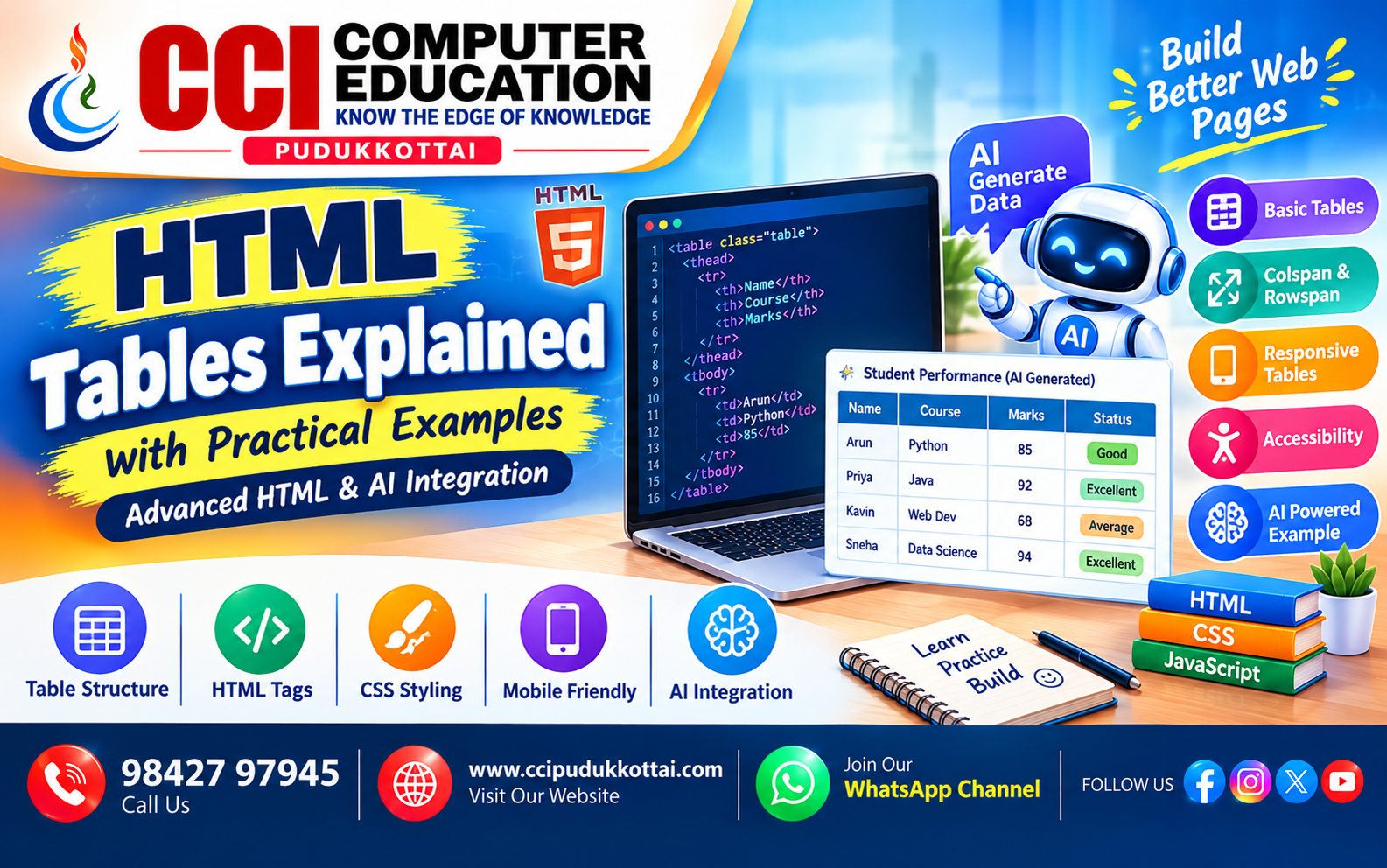
HTML Tables Explained with Practical Examples – Advanced HTML and AI Integration
Published: 27 Oct, 2026 | Author: CCI Admin | Category: Web Development / HTML / AI
HTML tables are used to display information in rows and columns. They are useful for student marks, employee records, product prices, attendance reports, dashboards, and business analytics.
In this tutorial, you will learn HTML table basics, table headings, borders, CSS styling, colspan, rowspan, responsive tables, accessibility, and an advanced example showing how AI-generated data can be displayed in an HTML table.
1. What Is an HTML Table?
An HTML table organizes related information into rows and columns. HTML provides elements such as <table>, <tr>, <th>, and <td> to create tables.
- <table>: Creates the table.
- <tr>: Creates a table row.
- <th>: Creates a header cell.
- <td>: Creates a data cell.
- <caption>: Gives the table a descriptive title.
2. Basic HTML Table Example
Let's create a simple table displaying student names, courses, and marks.
<table border="1">
    <tr>
        <th>Student Name</th>
        <th>Course</th>
        <th>Marks</th>
    </tr>
    <tr>
        <td>Arun</td>
        <td>Python</td>
        <td>85</td>
    </tr>
    <tr>
        <td>Priya</td>
        <td>Java</td>
        <td>92</td>
    </tr>
</table>
Expected Output
| Student Name | Course | Marks |
|---|---|---|
| Arun | Python | 85 |
| Priya | Java | 92 |
3. Advanced Table Structure
For professional websites, use <thead>, <tbody>, and <tfoot> to organize table headings, main data, and summary rows.
<table>
    <caption>Course Fee Summary</caption>

    <thead>
        <tr>
            <th scope="col">Course</th>
            <th scope="col">Students</th>
            <th scope="col">Fee</th>
        </tr>
    </thead>

    <tbody>
        <tr>
            <td>Python</td>
            <td>20</td>
            <td>₹5,000</td>
        </tr>
        <tr>
            <td>Java</td>
            <td>15</td>
            <td>₹6,000</td>
        </tr>
    </tbody>

    <tfoot>
        <tr>
            <th scope="row" colspan="2">Total Students</th>
            <td>35</td>
        </tr>
    </tfoot>
</table>
Advanced tip: Use meaningful captions and header cells so users and assistive technologies can understand the table more easily.
4. Using colspan and rowspan
The colspan and rowspan attributes allow a cell to occupy multiple columns or rows.
Example: colspan
<table border="1">
    <tr>
        <th colspan="2">Student Details</th>
    </tr>
    <tr>
        <td>Name</td>
        <td>Kavin</td>
    </tr>
</table>
Here, the heading spans two columns.
Example: rowspan
<table border="1">
    <tr>
        <th>Student</th>
        <th>Subject</th>
    </tr>
    <tr>
        <td rowspan="2">Anu</td>
        <td>HTML</td>
    </tr>
    <tr>
        <td>CSS</td>
    </tr>
</table>
Here, Anu's name spans two rows.
5. Styling HTML Tables with CSS
CSS makes tables more attractive and readable. You can add borders, spacing, alternating row colors, and hover effects.
<style>
    table {
        width: 100%;
        border-collapse: collapse;
        font-family: Arial, sans-serif;
    }

    th, td {
        border: 1px solid #ccc;
        padding: 12px;
        text-align: left;
    }

    th {
        background: #123f7a;
        color: white;
    }

    tbody tr:nth-child(even) {
        background: #eef5ff;
    }

    tbody tr:hover {
        background: #fff0bd;
    }
</style>
Important: Place the CSS inside a <style> element in your HTML document's <head> section, or in a separate CSS file.
6. Responsive HTML Tables for Mobile Devices
Wide tables may overflow on phones. Wrap the table in a container with overflow-x:auto so users can scroll horizontally when necessary.
<div style="overflow-x:auto;">
    <table style="width:100%; border-collapse:collapse;">
        <tr>
            <th>Name</th>
            <th>Course</th>
            <th>Email</th>
        </tr>
        <tr>
            <td>Arun</td>
            <td>Python</td>
            <td>arun@example.com</td>
        </tr>
    </table>
</div>
This technique preserves the table structure while allowing horizontal scrolling on smaller screens.
7. AI Advanced Concept: Display AI-Generated Data in an HTML Table
Artificial Intelligence can help analyze data, generate summaries, and suggest insights. HTML tables can present the results clearly in a web application.
For example, an educational dashboard could display sample student performance insights generated by an AI service.
Important: HTML does not generate AI predictions by itself. A real AI-powered application needs a suitable AI model or API, JavaScript or a backend, and appropriate data handling. The following example demonstrates how JavaScript displays sample AI-style insights in a table; the insights are predefined examples, not live AI output.
<h3>AI Student Performance Insights</h3>

<div style="overflow-x:auto;">
    <table id="insightTable"
           style="width:100%; border-collapse:collapse;">
        <thead>
            <tr>
                <th>Student</th>
                <th>Score</th>
                <th>AI-Style Insight</th>
            </tr>
        </thead>
        <tbody></tbody>
    </table>
</div>

<script>
const students = [
    { name: "Arun", score: 85 },
    { name: "Priya", score: 92 },
    { name: "Kavin", score: 48 }
];

const tbody = document.querySelector("#insightTable tbody");

students.forEach(student => {
    let insight;

    if (student.score >= 85) {
        insight = "Strong performance";
    } else if (student.score >= 50) {
        insight = "Keep practising";
    } else {
        insight = "Needs additional support";
    }

    const row = document.createElement("tr");

    [student.name, student.score, insight].forEach(value => {
        const cell = document.createElement("td");
        cell.textContent = value;
        cell.style.border = "1px solid #ccc";
        cell.style.padding = "10px";
        row.appendChild(cell);
    });

    tbody.appendChild(row);
});
</script>
How This Example Works
- JavaScript stores sample student data in an array.
- A simple rule assigns an insight based on each score.
- The script creates table rows and cells dynamically.
- The results appear in the browser without manually writing every row.
This is a useful first step toward dashboards that display results from real AI services. In production, AI-generated insights should be validated, privacy should be protected, and important educational decisions should not rely on automated scores alone.
8. HTML Table Elements: Quick Reference
| Element or Attribute | Purpose |
|---|---|
| table | Creates a table |
| tr | Creates a row |
| th | Defines a header cell |
| td | Defines a data cell |
| caption | Describes the table |
| thead / tbody / tfoot | Groups table sections |
| colspan | Spans multiple columns |
| rowspan | Spans multiple rows |
| scope | Identifies the row or column a heading describes |
9. Common Mistakes to Avoid
- Using table tags incorrectly or forgetting closing tags.
- Using data cells instead of header cells for column headings.
- Forgetting mobile responsiveness on wide tables.
- Using tables to create the entire page layout instead of modern CSS layout techniques.
- Claiming that static JavaScript rules are real AI predictions.
- Displaying sensitive student information without appropriate permission and protection.
10. Faculty Tip
At CCI Computer Education, students can practise HTML tables by building a student mark sheet, a course fee table, an attendance report, and a simple dashboard. Then, add CSS styling and JavaScript-generated rows to understand how front-end applications display changing data.
11. Practice Tasks
- Create a student table with five students and three subjects.
- Use colspan to create a heading across two columns.
- Use rowspan to group a student's subjects.
- Style the table using CSS borders and alternating row colors.
- Build a responsive course table for mobile devices.
- Use JavaScript to generate table rows from an array of objects.
12. Frequently Asked Questions (FAQs)
1. What is an HTML table used for?
HTML tables display structured data such as student marks, schedules, product prices, and reports in rows and columns.
2. What is the difference between <th> and <td>?
The <th> element represents a table heading, while <td> represents an ordinary data cell.
3. What are colspan and rowspan?
colspan allows a cell to span multiple columns, while rowspan allows a cell to span multiple rows.
4. How do I make an HTML table mobile-friendly?
Wrap the table in a container using overflow-x:auto and test the layout on smaller screens.
5. Can AI create an HTML table?
Yes. An AI service can generate structured data or code, while JavaScript can insert that data into an HTML table. The generated output should be validated before display.
6. Can HTML tables display live data?
Yes. JavaScript can update a table using data from a backend or API. The data source and update logic must be implemented separately.
Conclusion
HTML tables are an essential part of web development. By learning table elements, CSS styling, colspan, rowspan, responsive design, and accessible headings, you can create professional data displays. Combining HTML tables with JavaScript and carefully validated AI-generated data opens the door to interactive dashboards and modern web applications.
Start practising today and build your own student dashboard or course management table!
What to Learn Next
- HTML Forms and Input Validation
- CSS Flexbox and Grid Layout
- JavaScript DOM Manipulation
- Connecting a Website to a Database
- Building AI-Powered Web Applications
Related CCI Blogs
- HTML Basics for Beginners
- CSS Styling and Responsive Web Design
- JavaScript DOM Manipulation for Beginners
Learn Web Development with CCI Computer Education
Want to improve your programming and web development skills? CCI Computer Education helps learners build practical knowledge through programming concepts, examples, and project-based learning.
Explore CCI Computer EducationContact CCI Computer Education – Pudukkottai
Call: 98427 97945
Website:
www.ccipudukkottai.com
WhatsApp Channel: Join CCI Computer Education
CCI Computer Education – Learn Today, Build Tomorrow.